

You can now claim a business profile in ChatGPT, much as you would claim a Google Business Profile. OpenAI launched Businesses in ChatGPT in beta on 10 November 2026. An owner or authorised representative opens Business Hub, proves their connection to the business by phone, email, website domain or Shopify, and then passes an identity check run by Persona. You do not need an ads account or a ChatGPT Enterprise agreement, and OpenAI's help article mentions no charge. Claiming does not guarantee that ChatGPT will recommend you.
A PDF version with screenshots of each step is at the end.
Important distinction
A note on names. ChatGPT Business is also the name of the paid workspace plan for teams (formerly ChatGPT Team), with seats, roles and single sign-on. This article covers the free business profile in Business Hub. If you wanted the team plan, start with OpenAI's pages on managing members and seats in ChatGPT Business.
What a claimed profile gives you
| Part | What it does |
|---|---|
| Business profile | Category, description, contact details, photos, location and hours, managed by an authorised person. |
| Insights | Mentions, website clicks and discovery topics, shown as aggregate figures when enough data exists. |
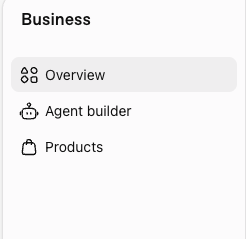
| Agent builder | A business agent that answers customer questions using information you supply and links to your website. Available to eligible US ecommerce and online service businesses only. |
| Products | A product feed (including from Shopify) with prices and availability, for sellers who have a real catalogue. |
You do not receive individual customer prompts or conversations, including chats with your business agent. OpenAI also says claiming a profile does not change how visible you are in ChatGPT's own answers, and that advertising does not influence them.
Can a UK business claim a profile yet?
The answer depends on what kind of business you run. OpenAI's help article says eligible businesses can claim an existing profile, or add one, where ChatGPT is available and the required verification is supported. Availability depends on location and type. An online business that does not appear in search may see an option to add itself. Local stores and restaurants can currently claim only an existing US listing. Business agents are limited to eligible ecommerce and online service businesses in the US.
Creating a profile for a physical location outside the US currently places you on a waitlist, with an email promised when you can continue.
Practical advice for UK firms: For a UK service or ecommerce business with a website, try the claim now. If the add option does not appear, or you reach a waitlist, note the date and check again in a few days. The feature launched in beta, so availability changes quickly.
Before you start
You need four things ready before opening Business Hub:
Website & DNS Access
A website your business controls, and access to its DNS settings (or the person who manages them).
ID Documents for Persona
Government-issued ID, business registration information and proof you can represent the business.
Accurate Details
A short, accurate description of your services and an official business email address.
Photos & Hours
High-resolution photos you own (logo, team, premises) and opening hours if physical.
Find your business
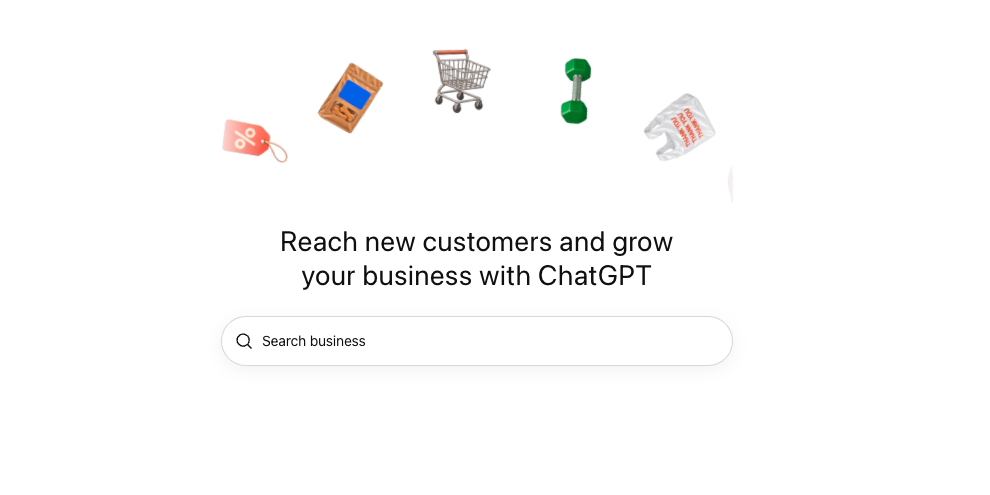
Sign in to ChatGPT on the web and open Business Hub from the sidebar, or go to chatgpt.com/business-hub. Search for your business by name and select the listing that matches. Confirm the ChatGPT account you will use to manage it. If you cannot find it and you run an eligible online business, choose the option to add it. An online business with no physical location selects the website option.
If you received a claim invitation by email, open the personal link in that email and sign in with the address that received it. If the page says Contact support, the listing is locked and you need to request access.
Choose how to verify
OpenAI offers four methods, and you only see the ones available for your business:
- Business phone: A code by text message or automated call to the number shown.
- Business email: A code sent to the address associated with the business.
- Website domain: A DNS TXT record you add to your domain (most reliable for UK service firms).
- Shopify store: Connect your store and sign in to confirm.
Domain verification suits a business with a website and DNS access. It involves editing DNS, so the next two steps cover it.
Copy the TXT record & add to DNS
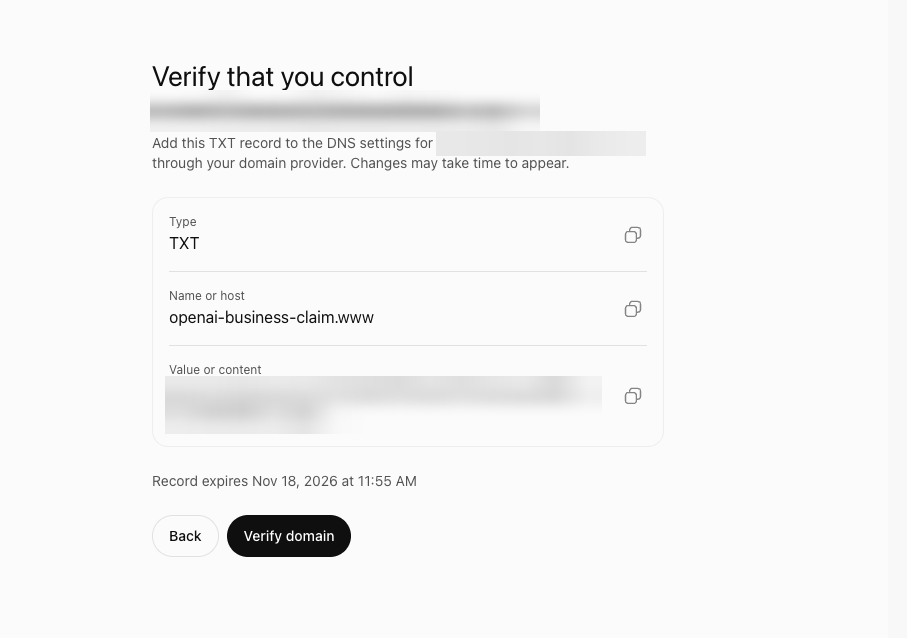
ChatGPT shows a TXT record made of a type, a host (or name) and a value. Copy each exactly as shown. The value is unique to your claim. Keep the ChatGPT screen open while you update your DNS, and add the record the same day, because the record expires.
DNS TXT record instructions
- Open your domain registrar (GoDaddy, Cloudflare, Namecheap, Google Domains) and go to DNS settings.
- Choose Add New Record and select TXT.
- Enter the host exactly as ChatGPT shows it (often
@or a specific subdomain), paste the unique value, set TTL to automatic/lowest, and save. - Go back to ChatGPT and choose Verify domain.
Important: Never overwrite existing DNS records
Add a brand-new TXT record. Do not edit or delete an existing one. Overwriting a TXT record can break email authentication (SPF, DKIM, DMARC) or other site services.
Complete your business details
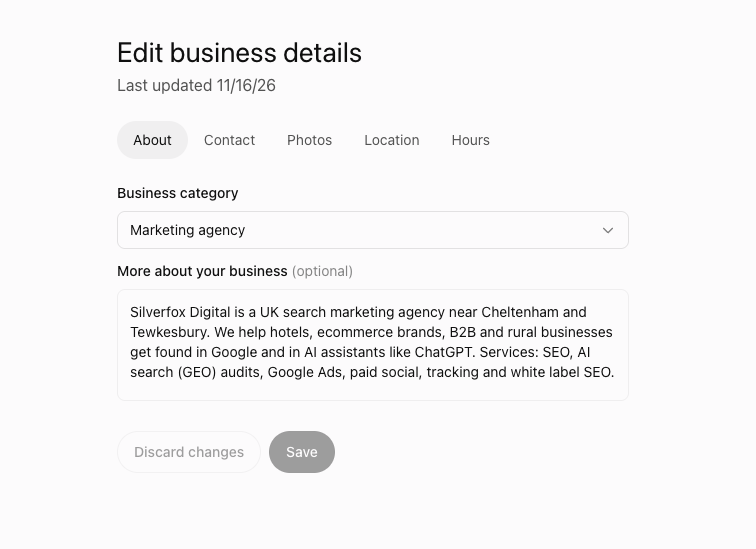
Once the claim is approved, the profile opens up. The tabs work much like a Google Business Profile.
About
Pick the category that is accurate for your business and describe what customers can find and do with you. Use words your customers use.
Contact
Phone, business email and website. Use an official business address, never a personal Gmail/Hotmail.
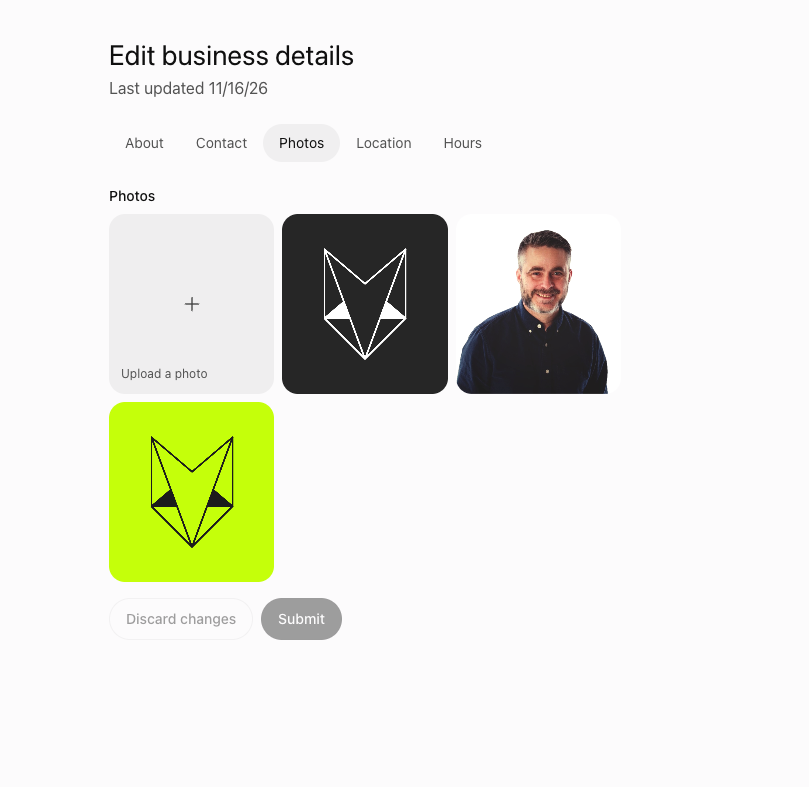
Photos
Clear, current images you own (logo, premises, team). Do not scrape photos from other listings.
Location, Hours & Policies
Physical address, hours and clear delivery or returns policies written in plain, human English.
Pass the identity check (Persona)
You need to complete identity verification with Persona before you can publish changes to your business information, connect a product feed, view insights or create an agent. Claiming alone does not earn the verified badge, the blue check. That appears once Persona approves you.
Expect to give your own identity details first, then business details: business name, country, business type, physical address (PO boxes are not accepted), and company registration/tax number that matches official records.
Two things to know before submitting to Persona:
- If you use Persona to create a new profile, OpenAI's approval publishes it automatically. There is no separate publishing step.
- OpenAI Support cannot delete, unpublish or hide a published profile. Only unpublished drafts can be deleted. Continue only when the details are accurate.
Add your team or agency
The admin who claimed the business can add teammates in Business Hub, and can grant an agency access to manage the profile. Each person uses their own ChatGPT account. Do not forward a personal claim invitation to give someone access. Add at least two people as admins, so the profile does not depend on one person's login.
Each brand is managed separately. Claiming a main brand does not claim its locations, and central management across several brands or locations is not currently available.
Read your insights
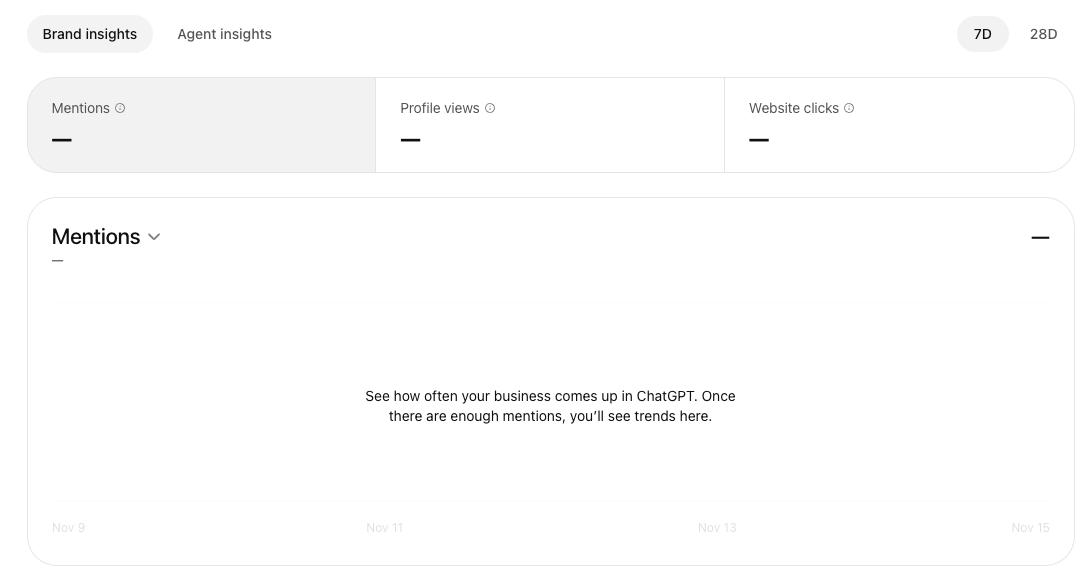
Once you are verified, open your business and choose Insights. The figures cover aggregate activity over the past 7 or 28 days:
Metric 01
Mentions
When ChatGPT references your website URL (not just naming your brand in passing).
Metric 02
Website Clicks
How often ChatGPT users click through directly to your domain from answers.
Metric 03
Discovery Topics
Themes and query topics where ChatGPT cited you. (Aggregated, not individual prompts).
A blank metric is not zero: it usually means the activity has not reached OpenAI's reporting threshold or data is still collecting.
What the dashboard does not tell you
The native Business Hub measures how often ChatGPT referenced your own website. It leaves critical blind spots:
No competitor visibility
You cannot see which rivals ChatGPT recommended instead of you for buyer searches.
No prompt or answer text
You cannot see what people asked or the exact wording ChatGPT used to describe your business.
Third-party mentions ignored
If ChatGPT cites a review site or directory about you, Business Hub counts zero.
ChatGPT only
Gemini, Google AI Overviews, Google AI Mode, Perplexity, Copilot and Claude sit completely outside it.
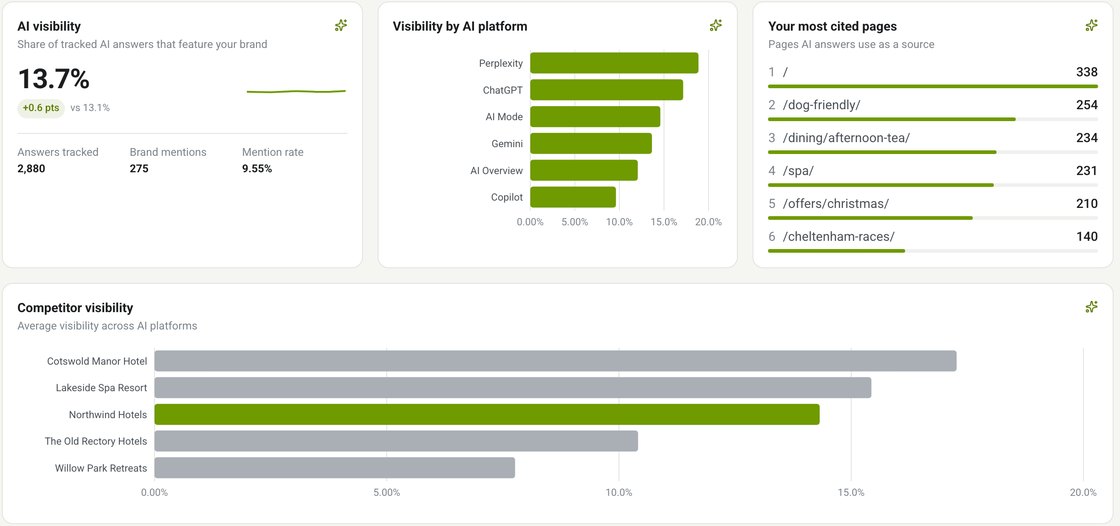
Filling the gaps with our AI visibility add-on
Business Hub reports how often ChatGPT referenced your own website. Our marketing dashboards add the surrounding picture. Every dashboard includes visits from AI assistants as standard, so sessions arriving from tools such as ChatGPT sit beside your other channels. The AI visibility add-on goes further and tracks your brand against your competitors across the main AI platforms.
| What Business Hub leaves out | What our dashboard shows |
|---|---|
| Competitors | Which competitors AI names instead of you, and how your share of voice compares. |
| Other sources | Which of your pages AI answers use as a citation source. |
| Other AI platforms | Weekly tracked visibility across ChatGPT, Perplexity, Gemini, Copilot, Google AI Overviews and Google AI Mode. |
| What buyers ask | A tailored set of the commercial questions your buyers ask, tracked week by week. |
How to measure what ChatGPT sends you
The dashboard shows visibility. It does not show whether anyone arrived, enquired or bought. Use three sources together:
| Source | What it shows | Where to look |
|---|---|---|
| Business Hub insights | Mentions, website clicks, discovery topics | Insights tab, monthly |
| Google Analytics 4 | Sessions that arrive from ChatGPT | Traffic acquisition → source containing “chatgpt” |
| CRM or enquiry log | Leads and sales that started with ChatGPT | Lead source field, and “how did you hear about us” |
Three practical tracking steps:
- Tag the website URL you enter in ChatGPT with UTM campaign parameters so referral clicks are clearly identified in GA4.
- Add “ChatGPT / AI assistant” to your “How did you hear about us?” dropdown on booking and enquiry forms.
- Each month, compare mentions, GA4 sessions and closed enquiries side-by-side to judge true commercial return.
Common problems & quick fixes
Domain will not verify
Check host and value match exactly, verify the record type is TXT, and allow up to 24 hours for DNS propagation.
Listing shows “Contact support”
The listing has been locked by OpenAI. You will need to raise a request via OpenAI Business Support.
Someone else already claimed it
Choose “Dispute ownership” in the more options menu and verify your authority via Persona.
Insights still blank
Give it time. Reporting requires a minimum threshold of aggregate mentions before trends populate.
Frequently asked questions
Download the step-by-step PDF
Our PDF version has the screenshots for each step, including the TXT record screen, the profile tabs and the insights view. Tell us where to send it and the download starts straight away.
If you would like help claiming your profile, choosing the right category and description, or setting up the measurement in GA4 and your CRM, get in touch with Silverfox Digital.